Your Mobile Cougar Card
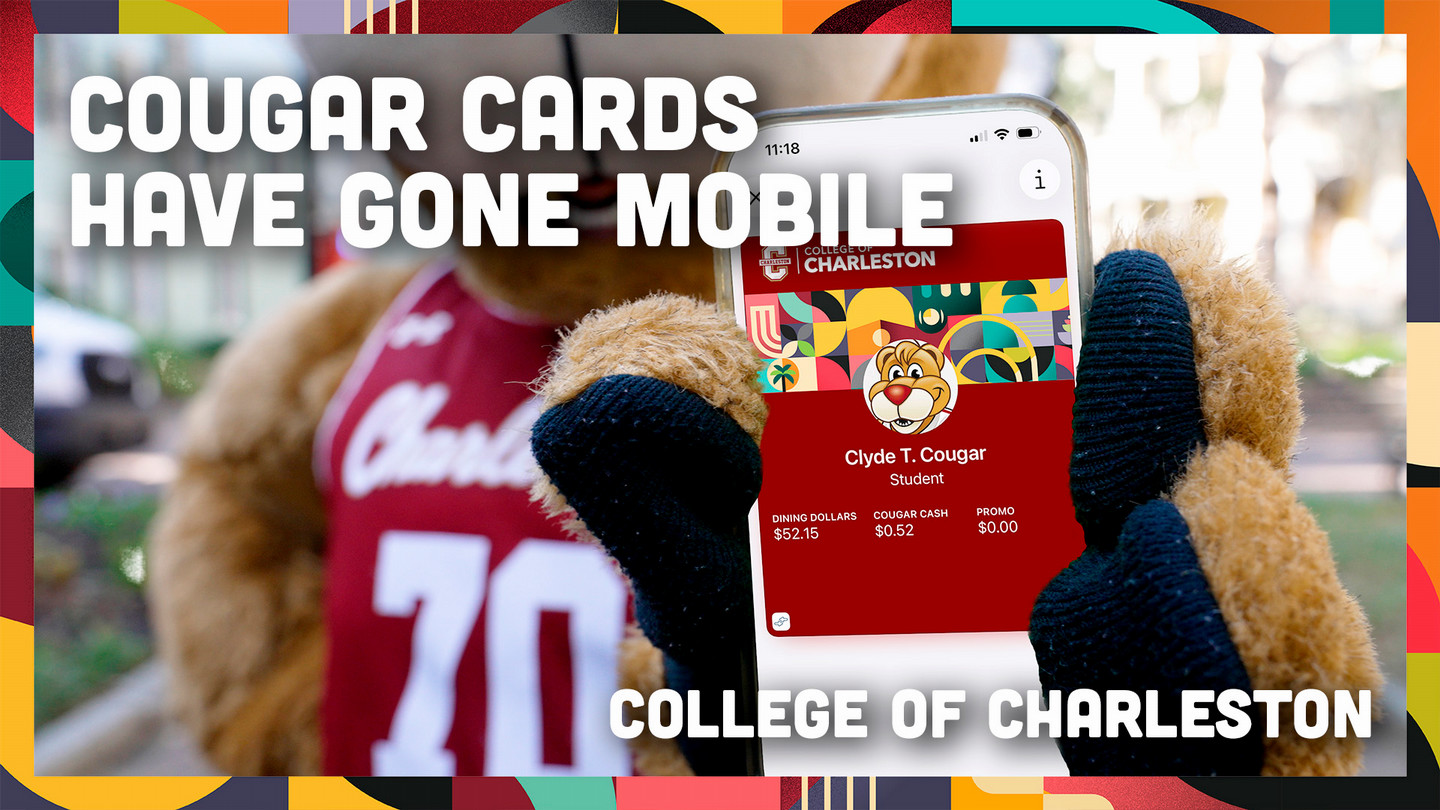
Your Cougar Card is now available in Apple Wallet, Google Wallet and Samsung Wallet!
The mobile Cougar Card is available to all students, employees and eligible contractors. Tap your iPhone, Apple Watch, Samsung Galaxy Phone or Watch, or other eligible Android phones at readers across campus to conveniently use your mobile Cougar Card. It acts just like the physical card. Add it to your preferred digital wallet now!
Check out the mobile Cougar Card
Getting Started
Before you enable your mobile Cougar Card, please note that the card is offered in two formats: mobile (preferred), which can be used on supported mobile devices, or a physical card. You may only have one format. When you enable mobile, your physical card will no longer work. (Exception: Your physical card will still work for swipe door access.)
Most users can begin using their mobile Cougar Card on their phone in minutes. Learn more in our FAQ section below.
First, be sure to read the Cougar Card Agreement, which you will acknowledge on your device during setup.
- Incoming students will receive instructions from Campus Services HQ to upload their photo online before orientation. You may set up your device once your photo has been approved.
- Current students and employees should follow the setup instructions for their device type as outlined below. Once the mobile Cougar Card is enabled, your existing physical Cougar Card will be deactivated. Cardholders who attempt to use or share a physical Card after activating/enabling their mobile Cougar Card may be subject to disciplinary action.
Setting Up Your Cougar Card
How do I set up my mobile Cougar Card? And what are the phone/watch requirements for it to work?
Follow these steps:
- Download the Transact eAccounts app from the App Store or Google Play Store.
- Open the Transact eAccounts app. Click through the startup screens and tap Get Started.
- Search for “College of Charleston” and click through to the login screen.
- Enter your College of Charleston credentials to authenticate your device. (It could take a few minutes.)
- Once you’re authenticated, make sure to add your Cougar Card to your mobile wallet. (You may add your Cougar Card to one phone and one watch.)
If you need more detailed instructions, select your device type below for additional information. (You will be redirected to Illumia, the parent company of Transact.)
If you’re having trouble adding your mobile Cougar Card to your device, please contact Campus Services HQ at campusservices@charleston.edu or 843.953.1100.
Frequently Asked Questions
-
What if I have a physical Cougar Card?
Your physical Cougar Card will no longer function if you add your mobile Cougar Card to your device.
You may keep your physical Cougar Card as a keepsake, but it will no longer be valid or usable for access or electronic transactions.
If you wish to return to using the physical Cougar Card after adding the mobile Cougar Card, you will be charged a new-card fee.
Remember, your mobile Cougar Card is a privilege and a benefit of being part of the College of Charleston community. Anyone found to be misusing their physical or mobile card will be subject to the applicable Code of Conduct or HR policies regarding fraud and/or misconduct.
-
What if I'm having trouble logging in or with multi-factor authentication?
You can change or recover your College of Charleston login password by following the instructions in this Knowledge Base article about passwords from Information Technology.
If you're having trouble with multi-factor authentication, follow the instructions in this Knowledge Base article about MFA from Information Technology.
-
How do I change my name on my mobile Cougar Card?
The mobile Cougar Card will display your preferred name and legal last name.
Legal Name
A student’s legal name is provided to us by the Office of the Registrar. Follow instructions for a Personal Information Update.
An employee’s legal name is provided to us by Human Resources. Log into the Human Resources hub page. Search for “Personal Data Sheet” and complete the form to submit to HR.
Once the registrar or HR completes the changes, the updates will sync to the mobile Cougar Card on your device within 24 hours.
Preferred Name
Students and employees can update their preferred name by logging into MyPortal and clicking the Personal Information tile. Your changes will sync to the mobile Cougar Card on your device within 24 hours.
-
How do I add my card to a new phone?
Cougar Cards do not transfer automatically.
To add your card to a new phone, first remove the card from your former device one of two ways:
- Open your Wallet, select the Cougar Card, tap the “i” (iPhone) or top right “…” menu (Android) and select Remove ID.
- Log into the eAccounts mobile app, select the More Information menu under your card information, and select the Remove Campus ID option.
Don’t have access to your old phone?
You can email Campus Services HQ (campusservices@cofc.edu) from your CofC email and, during business hours, we’ll remove the card from your old device so you can re-enable on your new phone. This is the only option for Android.
With an iPhone, outside of business hours, you can do the following on your own – it will require that you remove all items from the Wallet on your new phone (which you can add back later).
Log into the eAccounts app. If the Add to Apple Wallet button is available, you can simply tap it, agree to the Terms & Conditions, and the card will be added to your Wallet. If View in Wallet is available, but you receive the message, Campus ID not found - Contact Card issuer, when trying to view the card, follow these steps:
- Open iPhone Settings. Tap on your name.
- Select current device.
- Scroll to Wallet and Apple Pay, and click Remove items.
- Log back into eAccounts and tap the Add to Apple Wallet button. Your new card will be added to your Wallet.
-
What if my phone battery dies?
Depending on your device type, you may still be able to tap in with a dead battery. (This does not apply if your phone is simply turned off.)
iPhone
- You may still be able to use your mobile Cougar Card for up to five hours of your battery dying if you have an iPhone XS, XS Max, XR or newer model. Visit Apple support for more details.
Android
- You will not be able to use your mobile Cougar Card with a dead battery.
Samsung Galaxy
- For eligible Samsung Galaxy phones and watches, users can make up to 15 transactions within 24 hours after their phone or watch powers off due to low battery.
-
What if I paid using the wrong payment type?
If you used your credit card at a participating retail location when you meant to use your mobile Cougar Card, please contact Campus Services HQ at campusservices@charleston.edu or 843.953.1100 within two weeks of the transaction.
-
I am graduating or leaving the College. What happens to my mobile Cougar Card?
As with a physical Cougar Card, your mobile Cougar Card will become inactive when you no longer meet eligibility requirements. If you transfer to another participating program or department at the College of Charleston, your credential will stay active and be updated accordingly.
-
What if I lose my device or suspect fraudulent use of my Cougar Card?
- If you’ve lost your device, play it safe and deactivate your mobile Cougar Card immediately.
- In the Cougar Card Portal (Transact eAccounts) app:
- Click the settings gear in the upper-right corner.
- Select Card Management.
- Choose the credential you want to deactivate and toggle it off.
- You will receive a confirmation email. Only the selected card will be deactivated. All other credentials will remain active.
- In the Cougar Card Portal web version:
- Select Card Services
- Select Deactivate Card
- Select the credential to deactivate and click Deactivate Card.
- If you don’t have access to the Cougar Card Portal app or website, you may call Campus Services HQ at 843.953.1100 during business hours (Monday-Friday, 8:30 a.m. – 5:00 p.m.). Be sure to specify whether the physical card, watch and/or phone version of the card should be deactivated. Any other device will remain active.
- In the Cougar Card Portal (Transact eAccounts) app:
- If applicable, identify any fraudulent activity – including inappropriate door access – and notify Campus Services HQ.
- Additional instructions for Lost/Found Apple devices and Find My iPhone are located on the Apple site.
- Additional instructions for Lost/Found Samsung devices and SmartThings Find are located on the Samsung site.
- If you’ve lost your device, play it safe and deactivate your mobile Cougar Card immediately.
-
How do I reactivate my mobile Cougar Card if I find my lost device?
To reactivate a found device that was suspended, take the following steps:
In the Cougar Card Portal (Transact eAccounts) app:
- Click the settings gear in the upper-right corner.
- Select Card Management.
- Choose the credential you want to reactivate and toggle it on.
- You will receive a confirmation email. Only the selected card will be reactivated.
In the Cougar Card Portal web version:
- Select Card Services.
- Select Activate Card.
- Select the credential to reactivate.
- You will receive a confirmation email. Only the selected card will be reactivated.