Visit Facilities Management
Facilities Management is located at 133 Calhoun Street in downtown Charleston, within the block bounded by King and Meeting cross-streets as shown on this map.
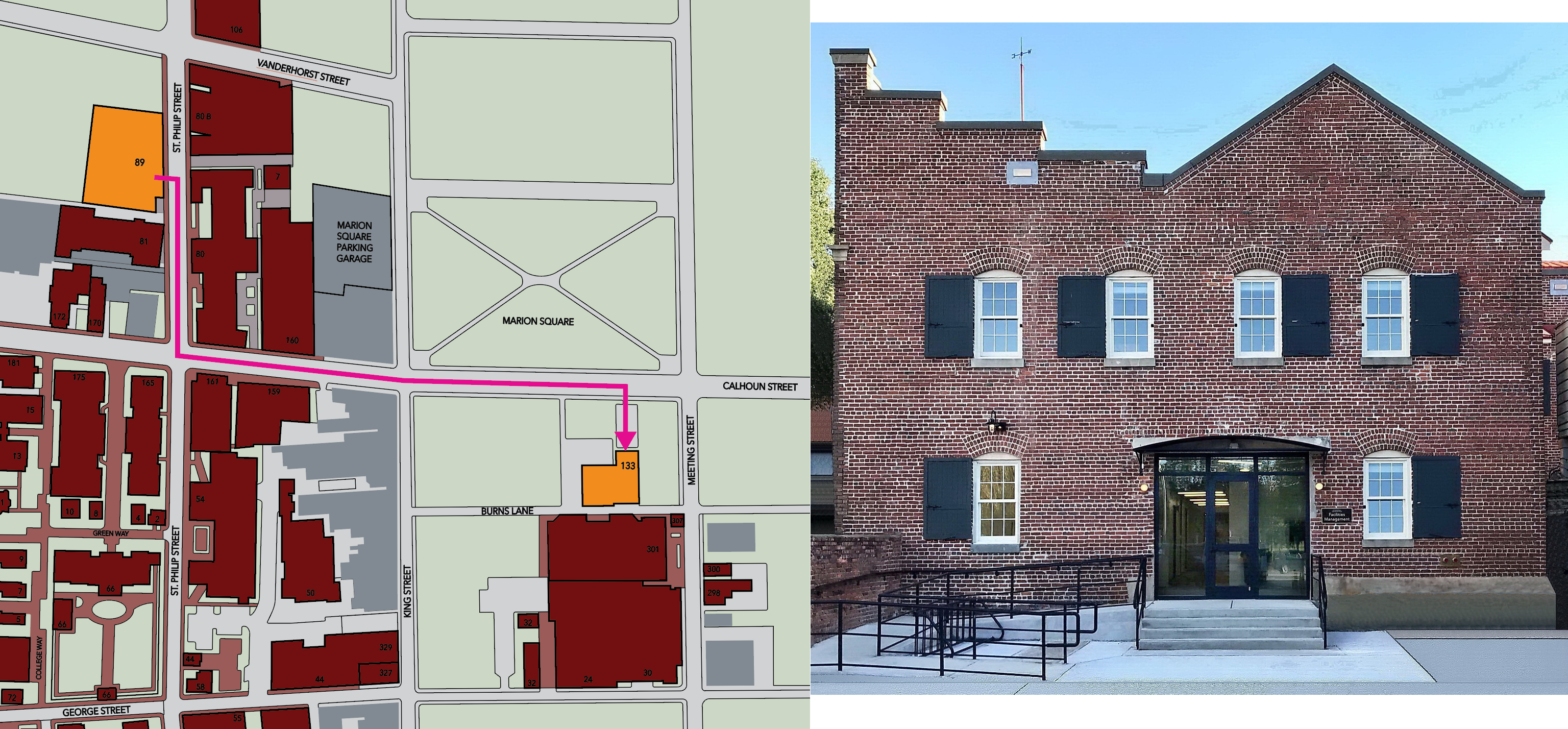
Our 22,731sqft. facility was constructed in 1850 to house the casket factory of J.M. Connelley Company, Charleston’s leader in funeral services from 1886 until 1979. The casket factory was just one part of the Calhoun Street - Burns Lane block that also included the company's mortuary, coffin-storage facility, greenhouses, and stables.
Visitor parking is not available in front of the building, with the exception of one wheelchair accessible parking space nearest to the main entrance. These spaces are reserved for our fleet vehicles. Parking is available in the College's garage at 89 St. Philip St., and at the Marion Square Parking Garage at 399 King Street. Metered parking may also be available along Calhoun St and Meeting St.
Upon arrival, please check in at the Customer Service Center on the right side of the main lobby.
Conference Call/Presentation Instructions
For Conference Calls:
- A Facilities Management employee will need to load the conference call, so that the room camera and microphone can be used. The room camera and microphone cannot be used when connected via HDMI.
- Wi-Fi connectivity is available for visitors by using the CofC-Guest network. Please remember to authenticate your connection within 10 minutes, or your connection will be lost.
Tip: Make sure any other visitors in the room that have the conference call open mutes themselves, so that there is no audio feedback.
For Presentations (no conference call):
- It is best to bring your own computer to connect to the screen for your presentation. If your presentation is only located on a USB drive or in cloud storage, a Facilities Management employee must log in on the conference room computer for you.
- The screens in the Conference Rooms are equipped with HDMI cables located behind each screen. USB-C to HDMI adapters are also available.
Tip: Make sure that the TV is set to the "Visitor HDMI" input to use the HDMI Cable.
If any setup help is needed or if there are any issues, please notify a Facilities Management employee and our in-house Technology Support can provide assistance.
Click here to return to the Facilities Management home page.